









 简体中文
简体中文 English
FAQ
Q: What's the difference between F405 V1.0 and V1.1?
Q: What's the difference between F405 V1.0 and V1.1?
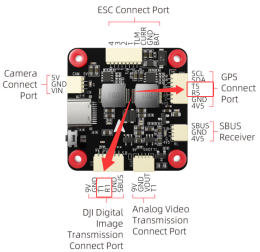
A: 1.Their boards are different. Here is the download link of the detailed manual of F405 V1.0 and F405 V1.1: https://www.radiolink.com.cn/f405_manual Please connect the devices to F405 based on the silkscreen on the board or the corresponding manual to connect the devices.
2.Their firmware is different. You can download the firmware for F405 V1.0 and F405 V1.1 from the below link:https://www.radiolink.com.cn/f405_new (Select APM, Betaflight and INAV to download the firmware you want) If the firmware installed is wrong, the flight controller cannot work well.
Q: What's the difference between F405 and F722?
Q: What's the difference between F405 and F722?
A: Please refer to the below link: https://www.radiolink.com.cn/comparison_of_flight_controller_series
Q: DoesF722/F405/PIX6/PIXHAWK/CrossRace/CrossFlight/CrossFlight-CE/Mini Pix support redevelopment?
Q: DoesF722/F405/PIX6/PIXHAWK/CrossRace/CrossFlight/CrossFlight-CE/Mini Pix support redevelopment?
A: Yes
Q: Does F405 support bidirectional DSHOT?
Q: Does F405 support bidirectional DSHOT?
A: Yes.
Q: Can F405 be connected to digital transmission?
Q: Can F405 be connected to digital transmission?
A: No. Betaflight does not support it.
Q: Does F405 support anti-turtle function?
Q: Does F405 support anti-turtle function?
A: Yes. However the anti-turtle function depends on the ESC. Please make sure your ESC supports the anti-turtle function.
Q: What firmware does F405 support?
Q: What firmware does F405 support?
A: F405 supports APM firmware, Betaflight firmware and INAV firmware. Here are the download links:
APM firmware:https://www.radiolink.com.cn/f405_apm_firmware
Betaflight firmware:https://www.radiolink.com.cn/f405_betaflight_configurator
INAV firmware:https://www.radiolink.com.cn/f405_inav_firmware
Note: The firmware for F405 V1.0 and F405 V1.1 is different. Please download the correct firmware for your F405 based on its hardware version.
Q: How to backup and load Betaflight settings on F722/F405?
Q: How to backup and load Betaflight settings on F722/F405?
A: Please refer to the tutorial: https://www.youtube.com/watch?v=RSy-w0kcy2A
Q: How to flash Betaflight firmware on F722/F405?
Q: How to flash Betaflight firmware on F722/F405?
A: Please refer to the tutorial:https://www.youtube.com/watch?v=PhudMeBZUGM
Q: How to flash INAV firmware on F722/F405?
Q: How to flash INAV firmware on F722/F405?
A: Please refer to the tutorial:https://www.youtube.com/watch?v=lKU4a_nO6-4
Q: How to flash APM firmware on F405?
Q: How to flash APM firmware on F405?
A: Please refer to the tutorial:https://www.youtube.com/watch?v=8HWZggAjbwo
Q: How to download INAV firmware?
Q: How to download INAV firmware?
A: INAV does not support RADIOLINKF405 flight controller. But you can download the compiled INAV firmware for RADIOLINKF405 flight controller from RadioLink official website.
Download link: www.radiolink.com.cn/f405_parameters_setting
Q: After F405 is flashed with INAV firmware, connect GPS to it, but the GPS logo on INAV configurator does not light up. Why?
Q: After F405 is flashed with INAV firmware, connect GPS to it, but the GPS logo on INAV configurator does not light up. Why?
A: Please follow the below steps to troubleshoot:
1.Please check if the connection between GPS and the flight controller is correct.
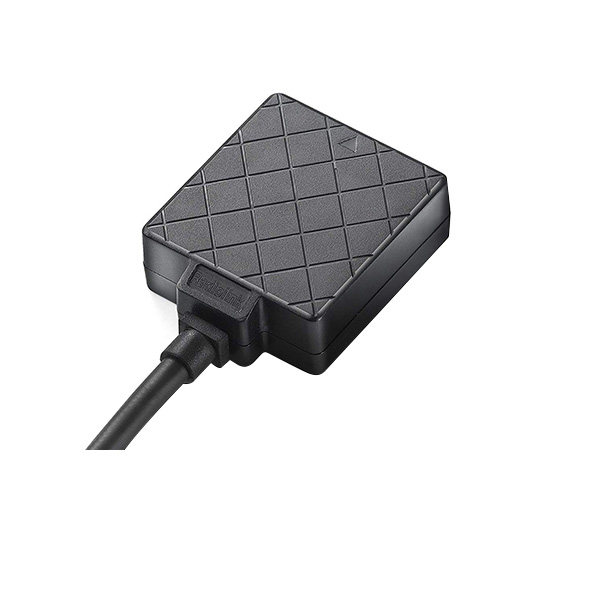
Definition of wires of RadioLink TS100 GPS:
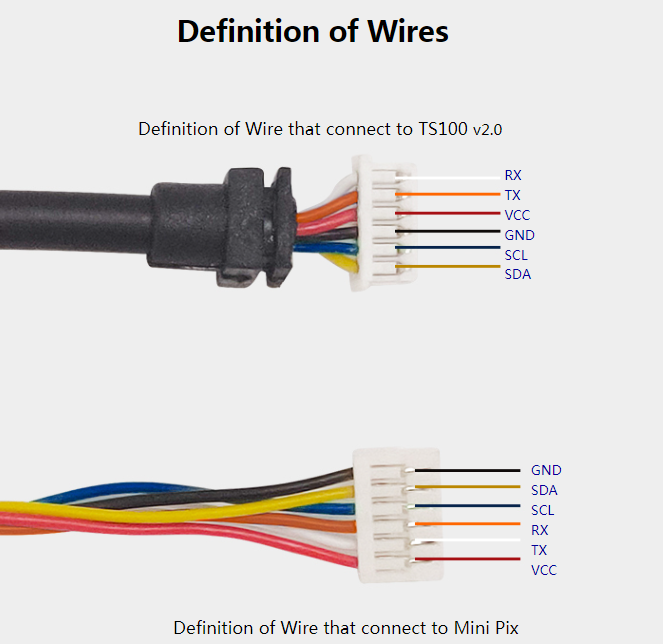
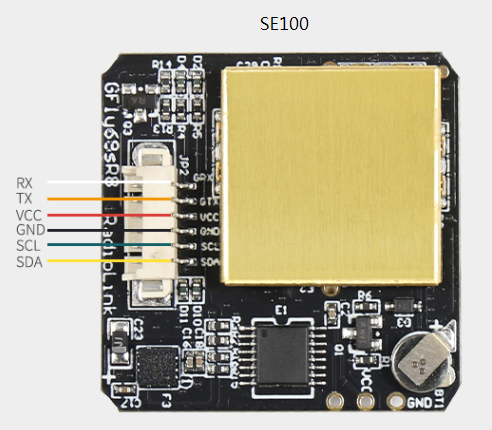
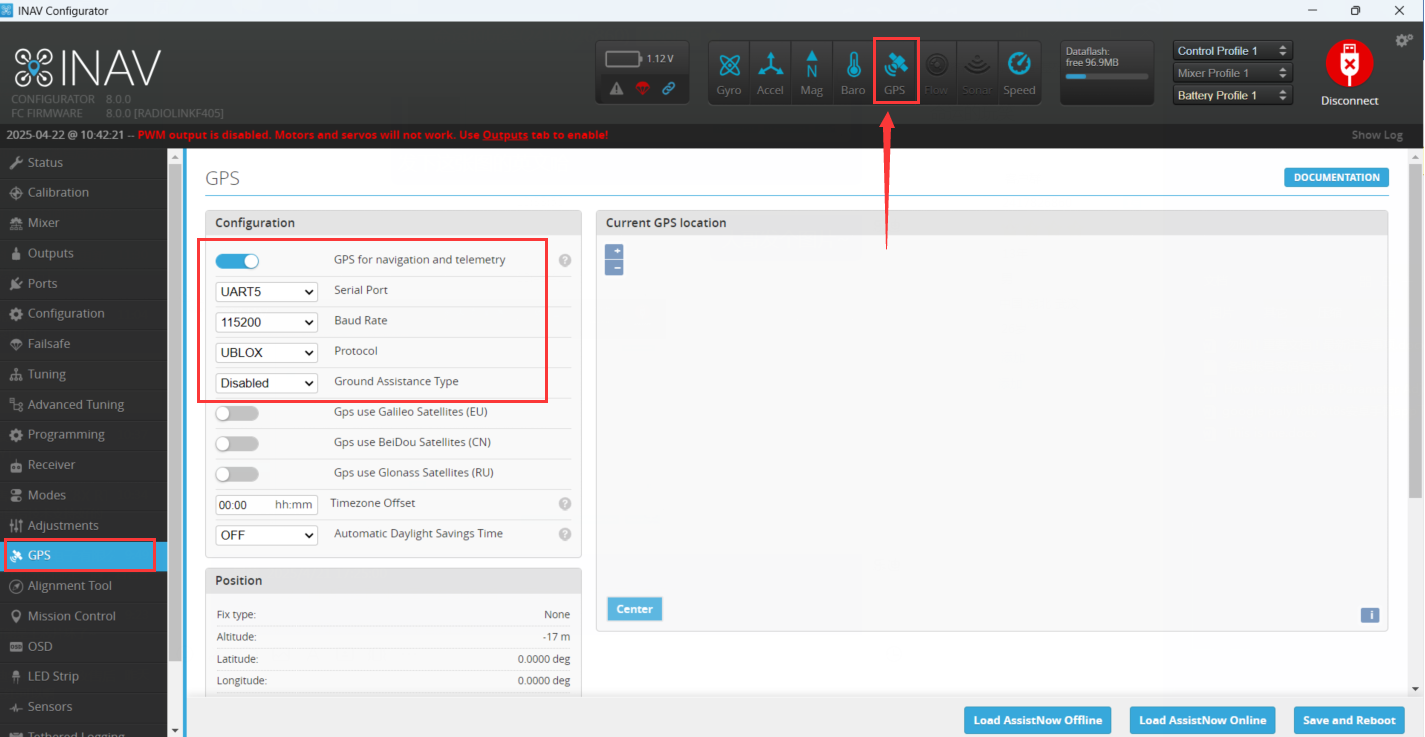
2.Set GPS parameters on INAV configurator.
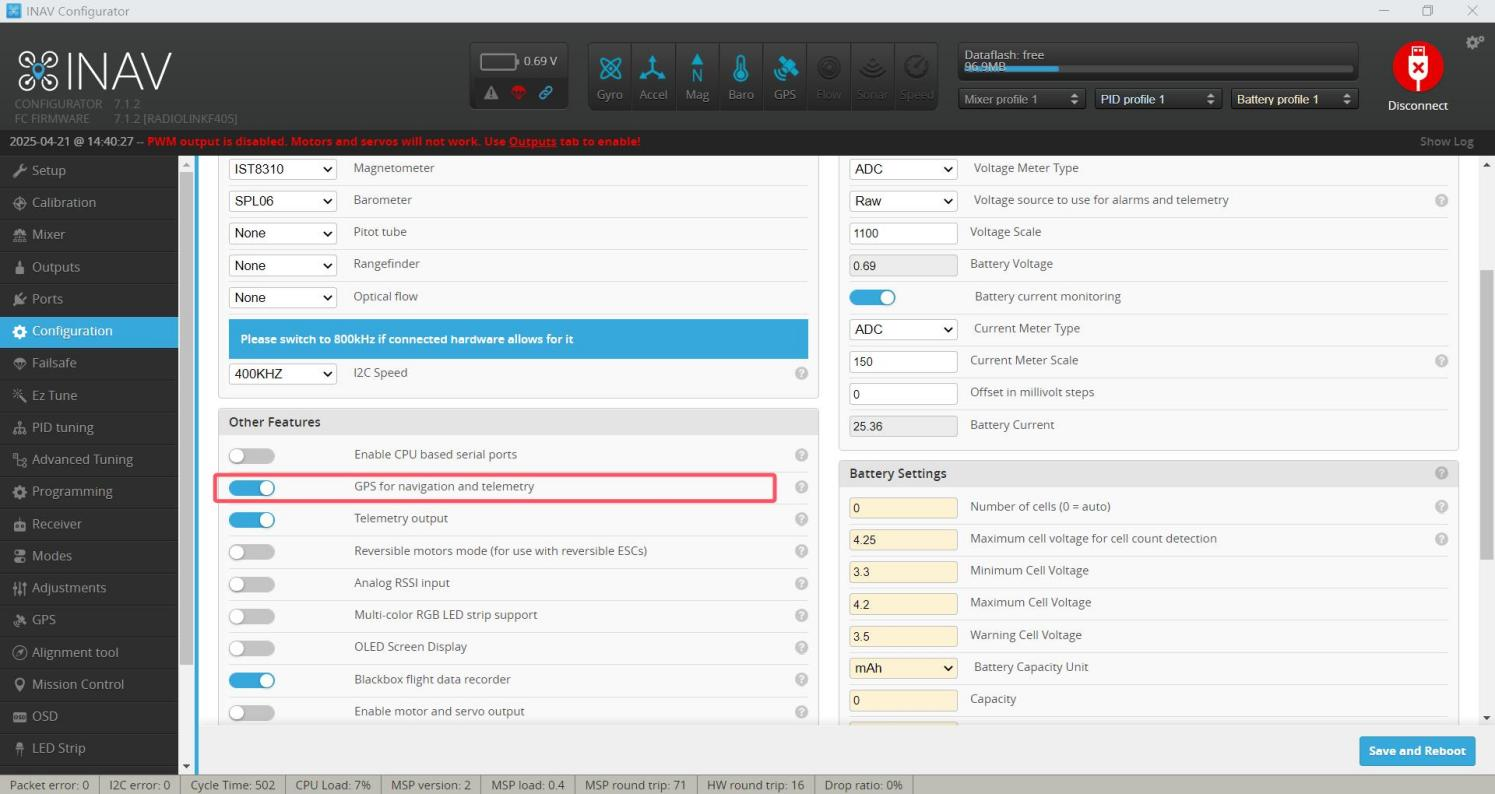
3. If the firmware of F722 is INAV 8.0.0 or below, please turn on GPS for navigation and telemetry function as shown below, so that the flight controller can recognize the GPS.
Q: Why F405 doesn’t work after flashing the firmware?
Q: Why F405 doesn’t work after flashing the firmware?
A: F405 will not work well if wrong firmware is flashed. The firmware in Betaflight is compiled by different manufacturers based on the different hardware configuration. So F405 cannot flash firmware from other manufacturers.
Q: Does F405 support auto flight?
Q: Does F405 support auto flight?
A: F405 can only support auto flight after flashing the INAV firmware.
INAV firmware download link:
Q: Does F405 support parameter adjustment on mobile APP?
Q: Does F405 support parameter adjustment on mobile APP?
A: Yes. Please download and install Betaflight configurator app.
Q: How to connect F405 to a non-4-in-1 ESC?
Q: How to connect F405 to a non-4-in-1 ESC?
A: Connect the signal line of the ESC to any solder joint of M1~M8. Connect the positive and negative poles to the battery, and the battery will directly power the ESC. Please refer to the picture below: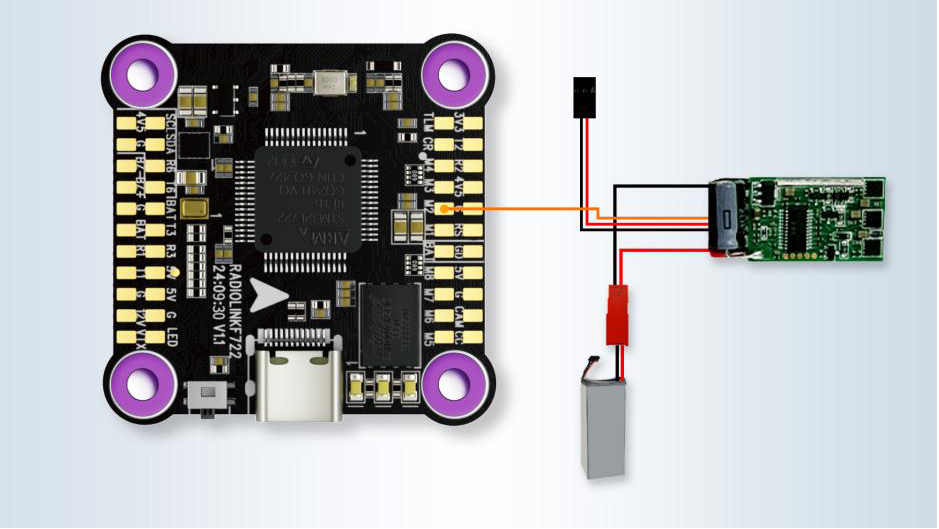
Q: Where can I download the ESC parameter adjustment software for Flycolor 55A 4-in-1 ESC?
Q: Where can I download the ESC parameter adjustment software for Flycolor 55A 4-in-1 ESC?
A: Flycolor 55A 4-in-1 ESC supports Bluejay configurator or BLHeliSuite software.
Download link of BLHeliSuite16xx: https://www.mediafire.com/folder/dx6kfaasyo24l/BLHeliSuite
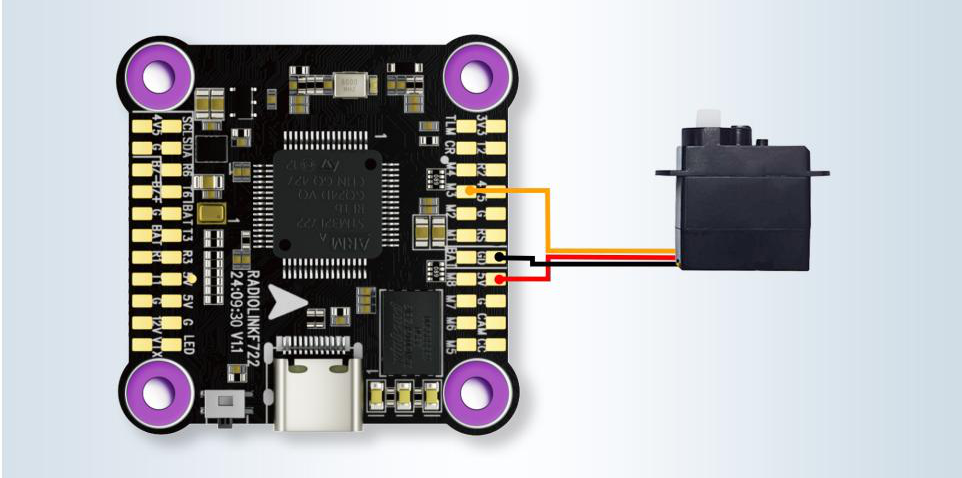
Q: How to connect a servo to F405?
Q: How to connect a servo to F405?
A: Connect the servo signal line to any solder point of M1~M8. Connect the positive pole to the 5V solder point of the flight controller, and the negative pole to the GND solder point of the flight controller. Please refer to the picture below:
Q:How to use TS100/SE00 GPS with F405 flight controller?
Q:How to use TS100/SE00 GPS with F405 flight controller?
A: If F405 is originally flashed with Betaflight or INAV firmware, but you now want to flash it with APM firmware, please use INAV Configurator to flash the APM firmware ending with .hex.
F405 INAV Configurator and the APM firmware ending with .hex download link:
https://www.radiolink.com.cn/f405_apm_firmware
Q: Can PRM-03 be connected to F405 flight controller?
Q: Can PRM-03 be connected to F405 flight controller?
A: Yes. Please flash APM firmware on F405. (APM firmware download link: www.radiolink.com/f405_apm_firmware).
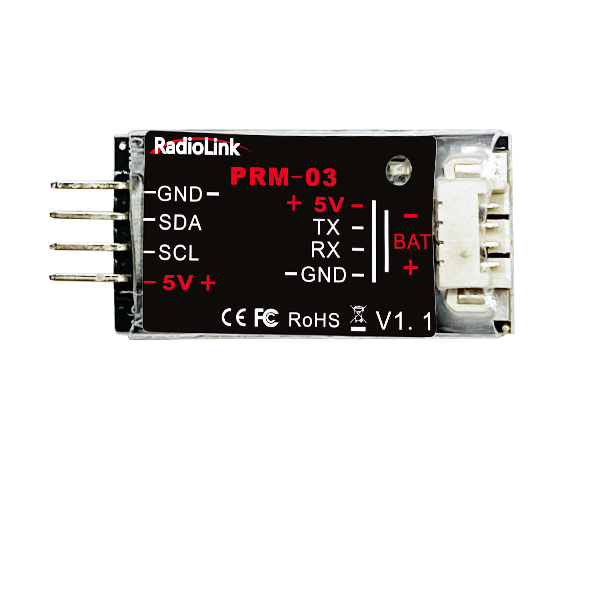
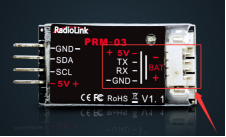
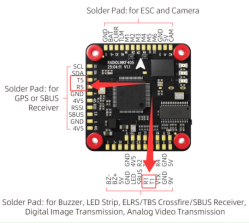
Connection instructions: Connect the left end of the PRM-03 to the receiver, and the right end to F405 flight controller. Connect the TX and RX pins on the right side of the PRM-03 to any RX and TX pins on F405 (see the diagram below). Connect the 5V and GND pins to any 5V and GND pins on F405.
Note: Connect the TX pin on the right side of the PRM-03 to the RX pin on F405; Connect the RX pin on the right side of the PRM-03 to the TX pin on F405.
Q: F405 is connected to SBUS receiver, but there is not any response which means they are not connected successfully. How to fix it?
Q: F405 is connected to SBUS receiver, but there is not any response which means they are not connected successfully. How to fix it?
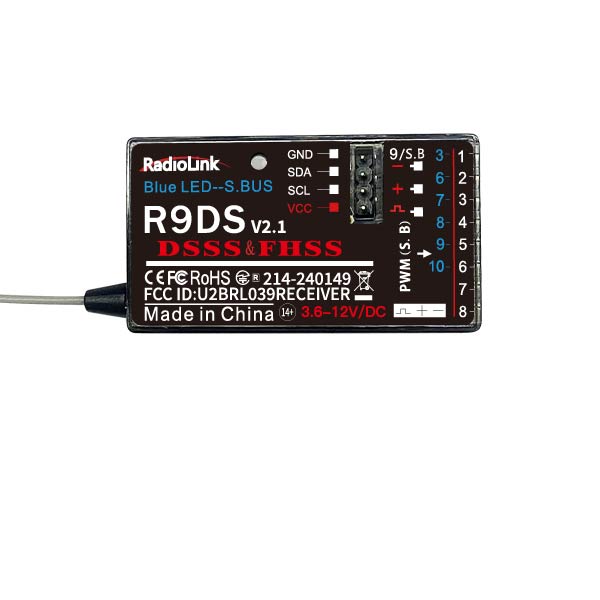
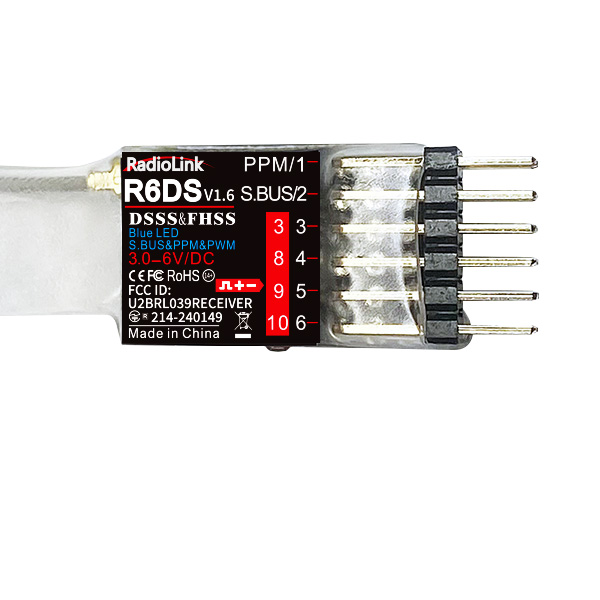
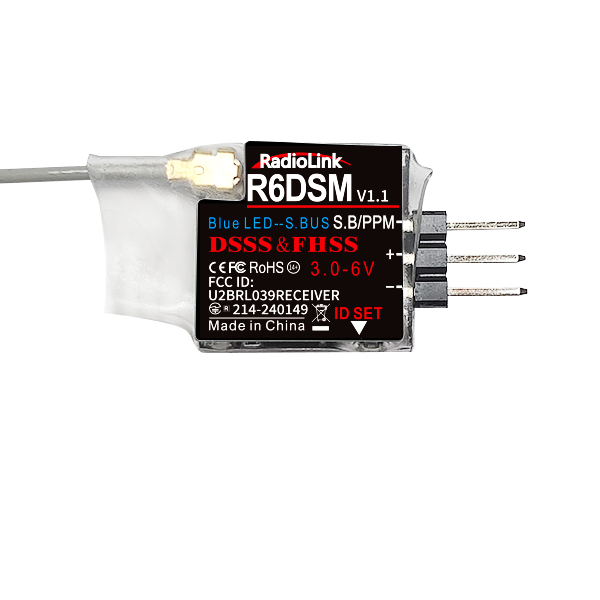
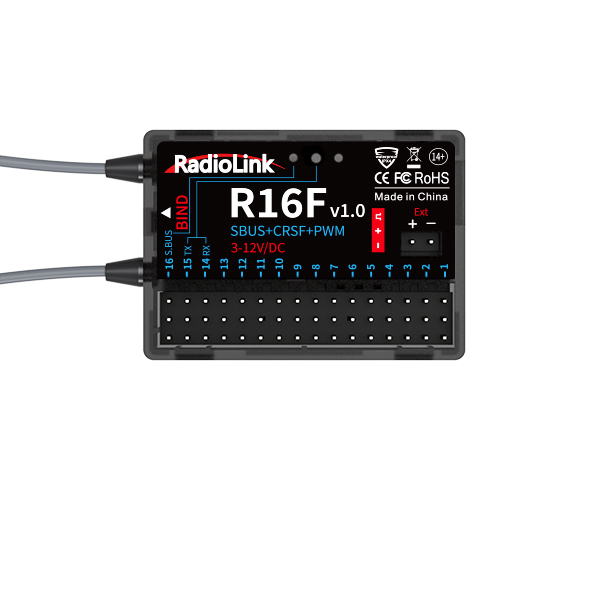
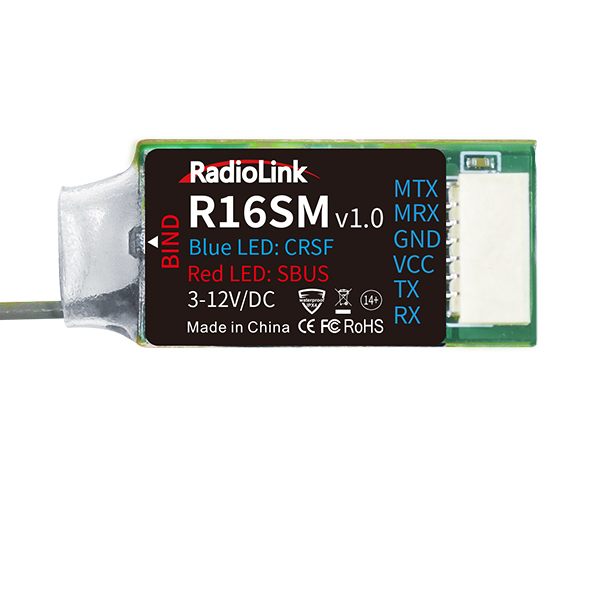
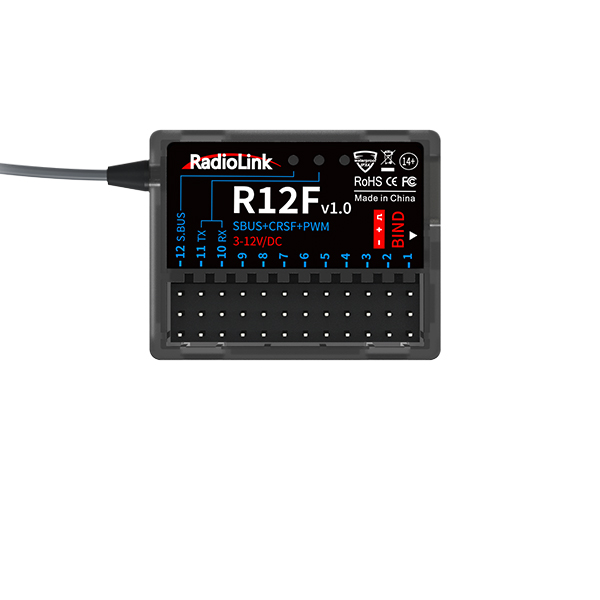
A: Please first check their connection. You can follow the below diagrams to connect SBUS receiver to F405:
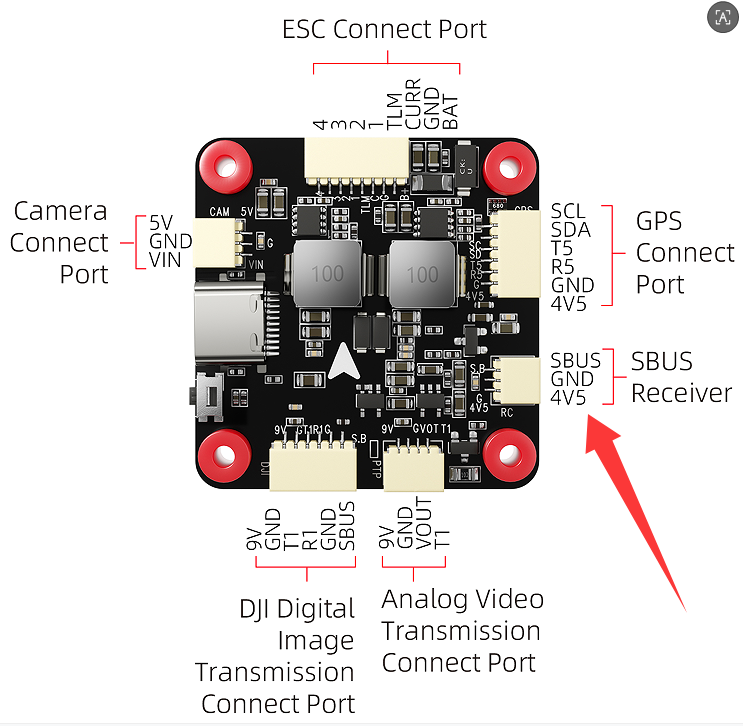
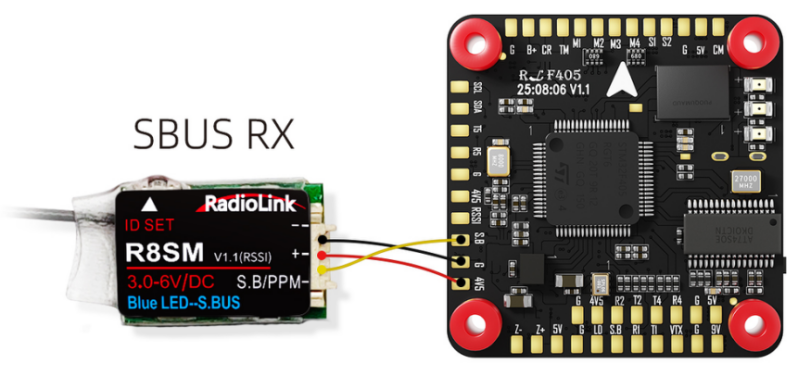
Then please set F405. F405 supports Betaflight, INAV and APM firmware. The setting methods are different when F405 is installed with different firmware. Please follow the below three methods to set F405.
F405 is installed with Betaflight firmware:
Step 1: Please open Betaflight configurator. Set Radio Protocol to SBUS before loading online firmware, as shown below:
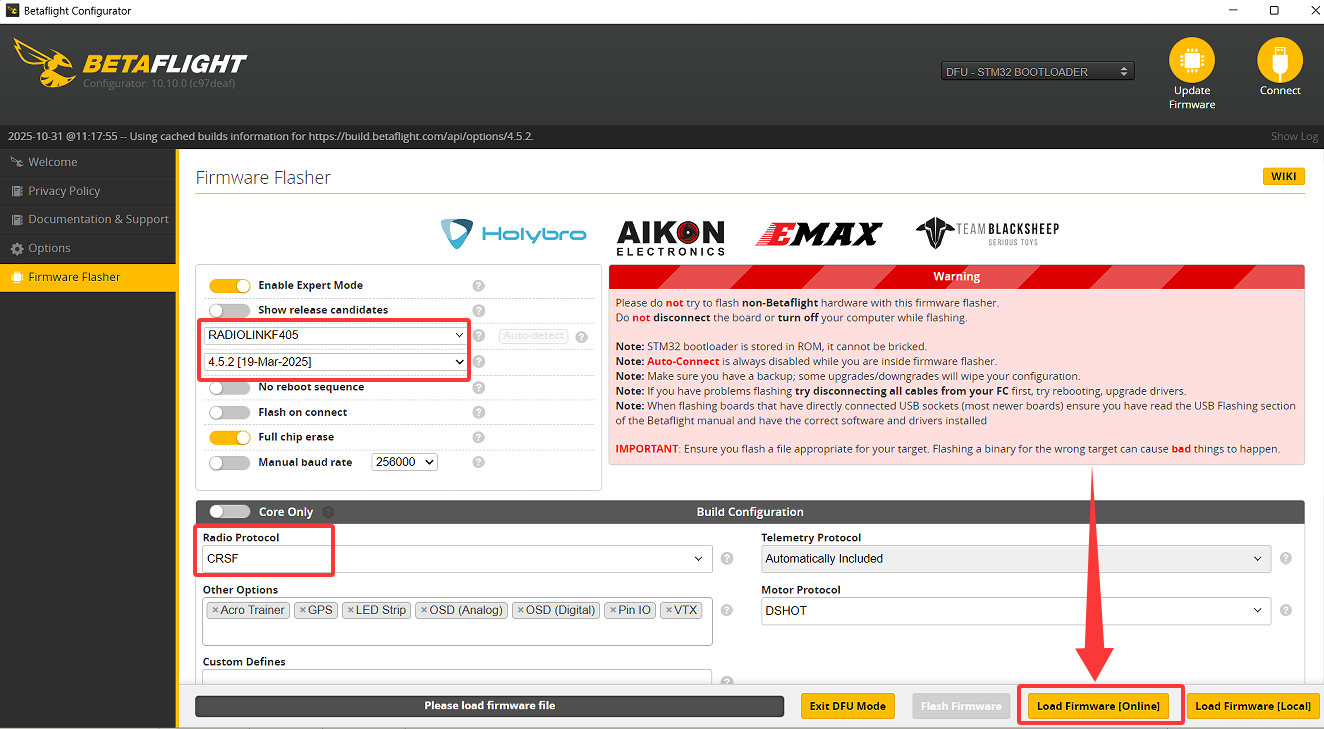
Notes:
If your F405 was installed with Betaflight firmware but you didn’t select SBUS protocol here, please reinstall Betaflight firmware by following the above steps.
If you load local firmware, you don’t need to select SBUS protocol here.
Step2: After the firmware update, please enter Ports menu, turn on Serial RX of UART2. Then click Save and Reboot.
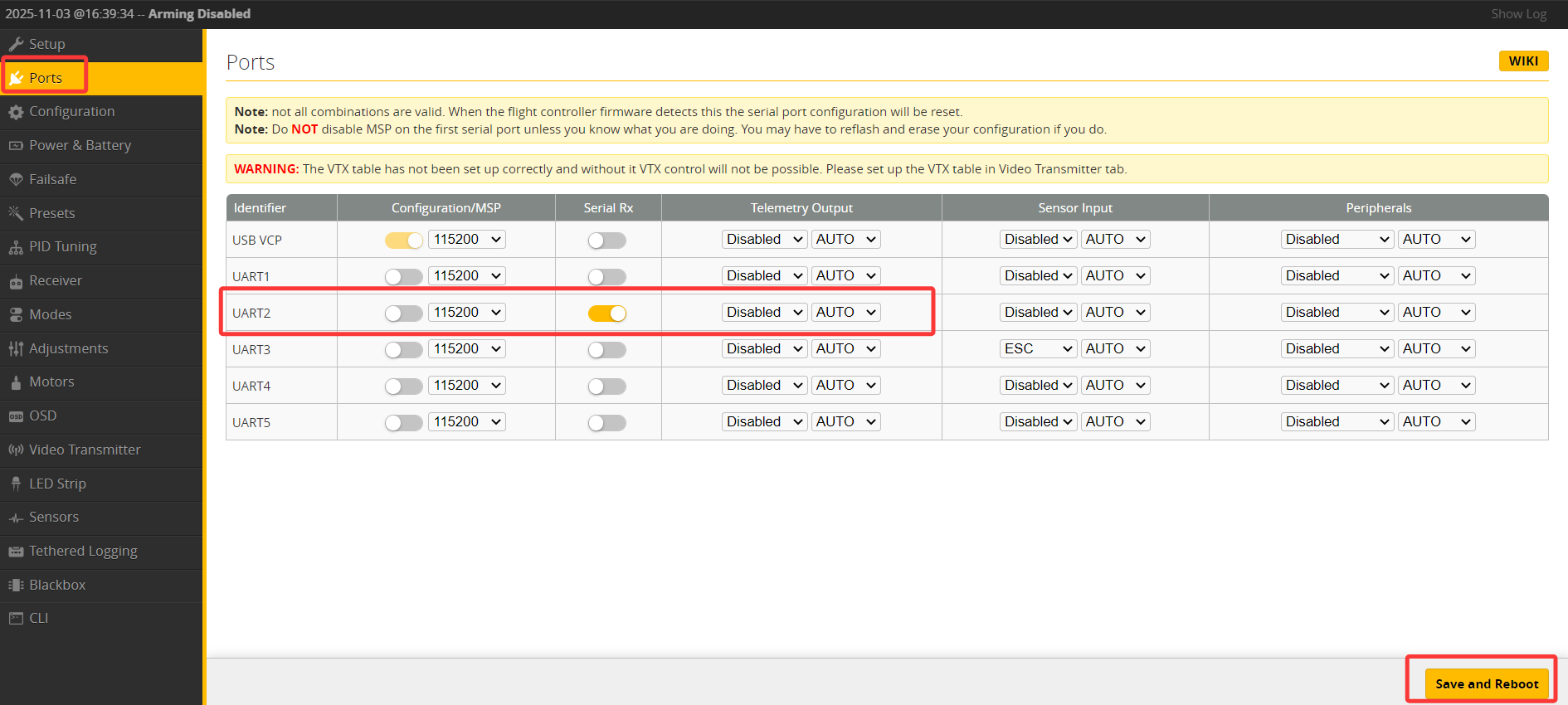
Step3: Enter Receiver menu, select Serial (via UART) for receiver mode, and select SBUS for serial receiver provider. Then click Save and Reboot.
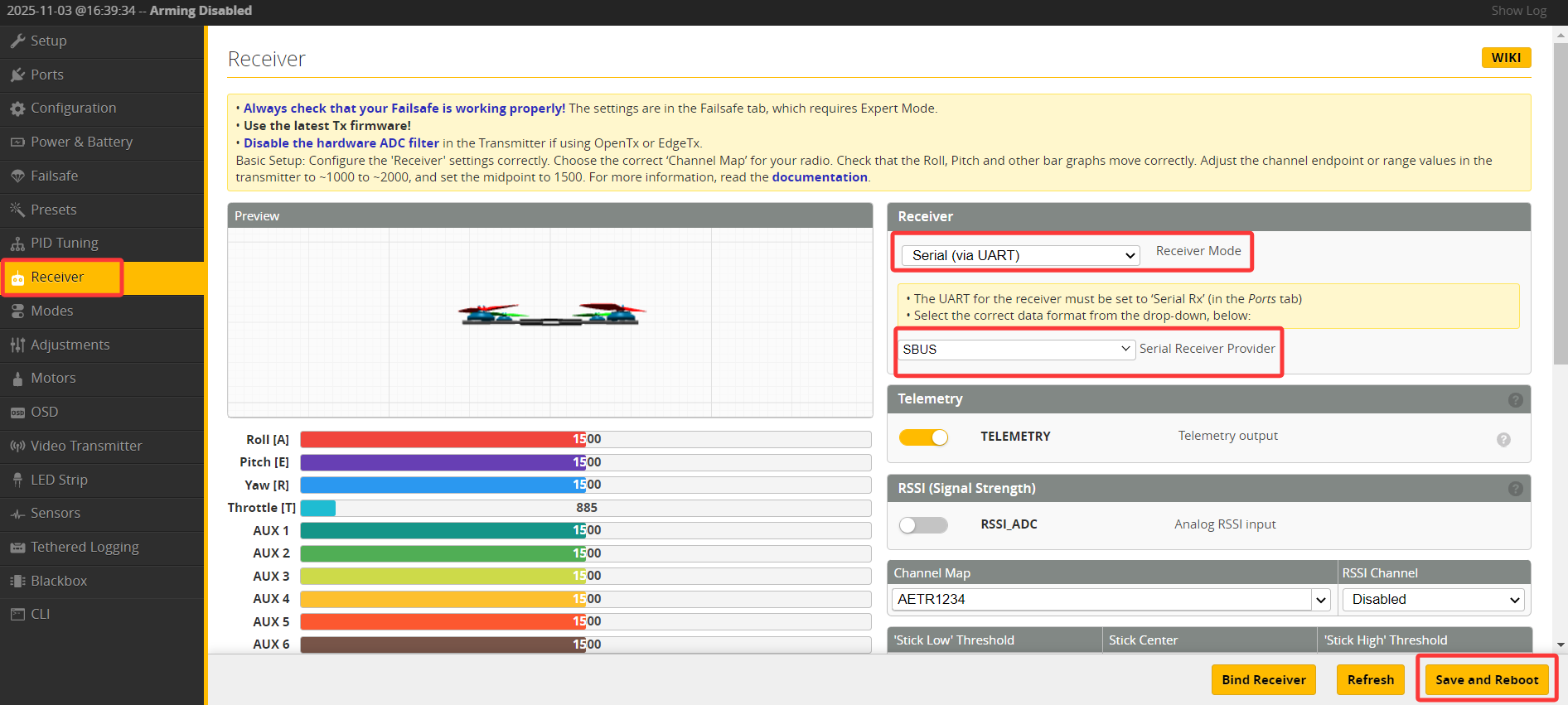
2 . F405 is installed with INAV firmware:
Step1: Please open INAV configurator. Connect F405. Enter Ports menu, turn on Serial RX of UART2. Then click Save and Reboot.
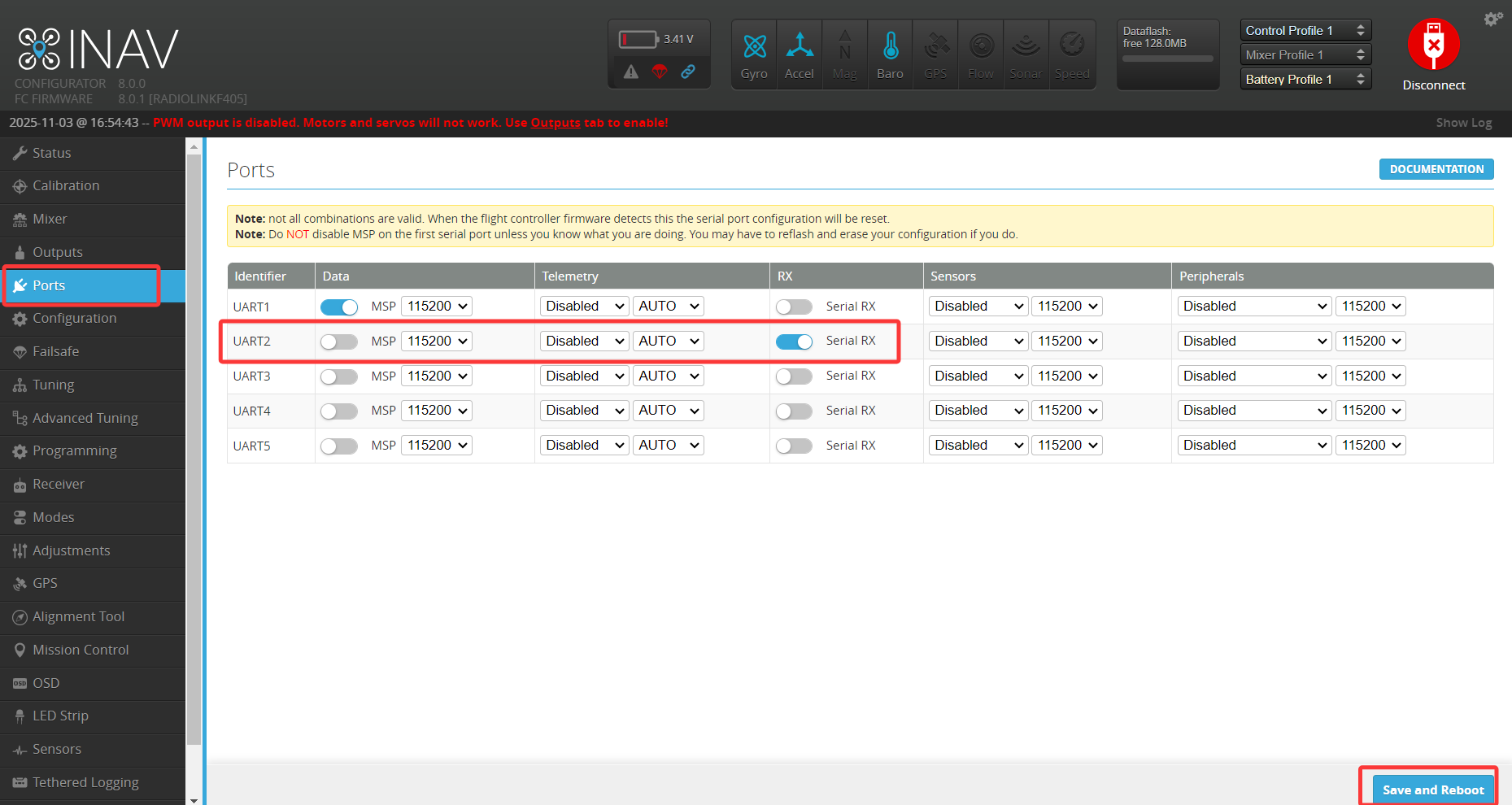
Step2: Enter Receiver menu, select SERIAL for receiver type, and select SBUS for serial receiver provider. Then click Save and Reboot.
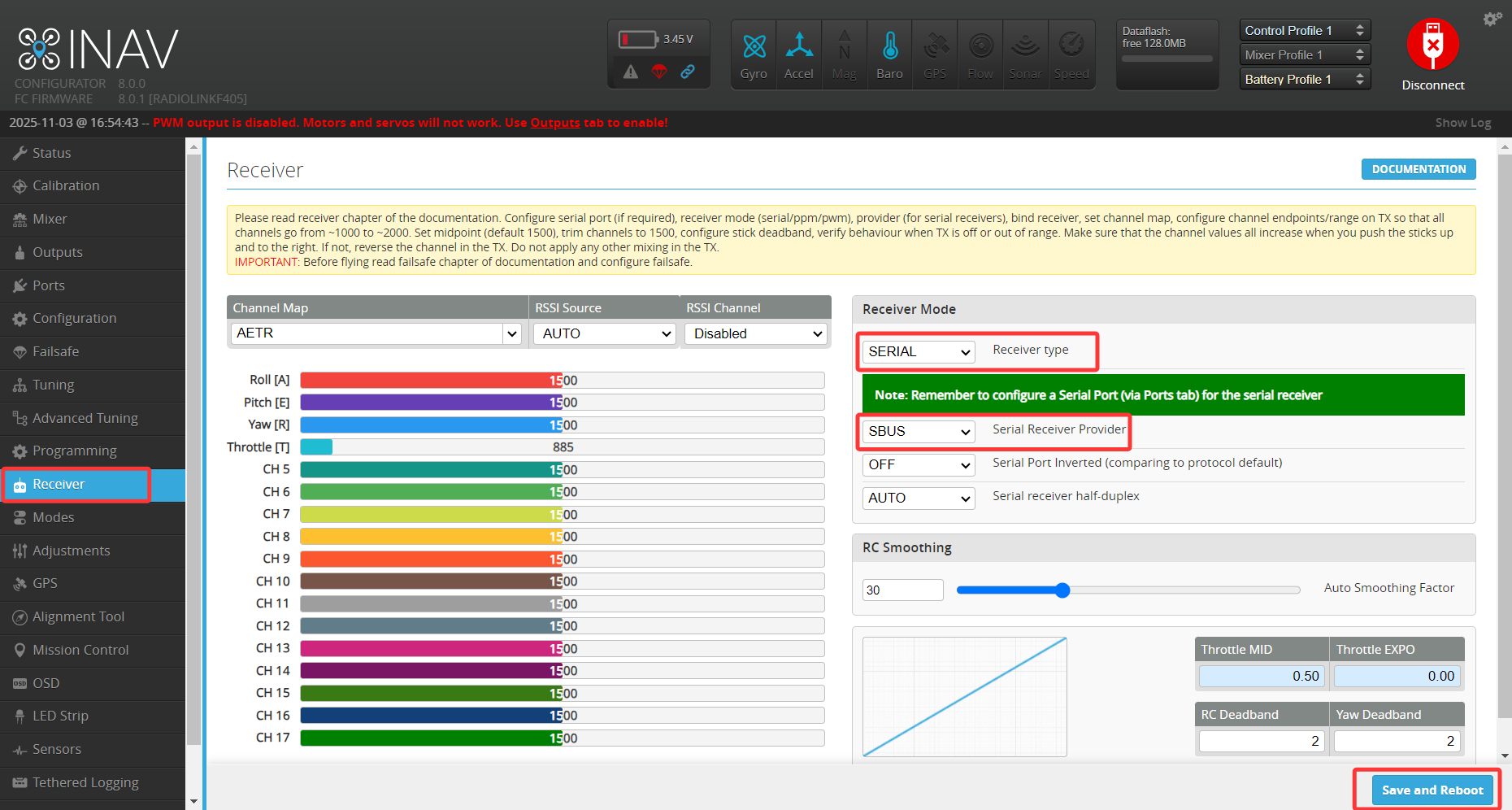
3 . F405 is installed with APM firmware:
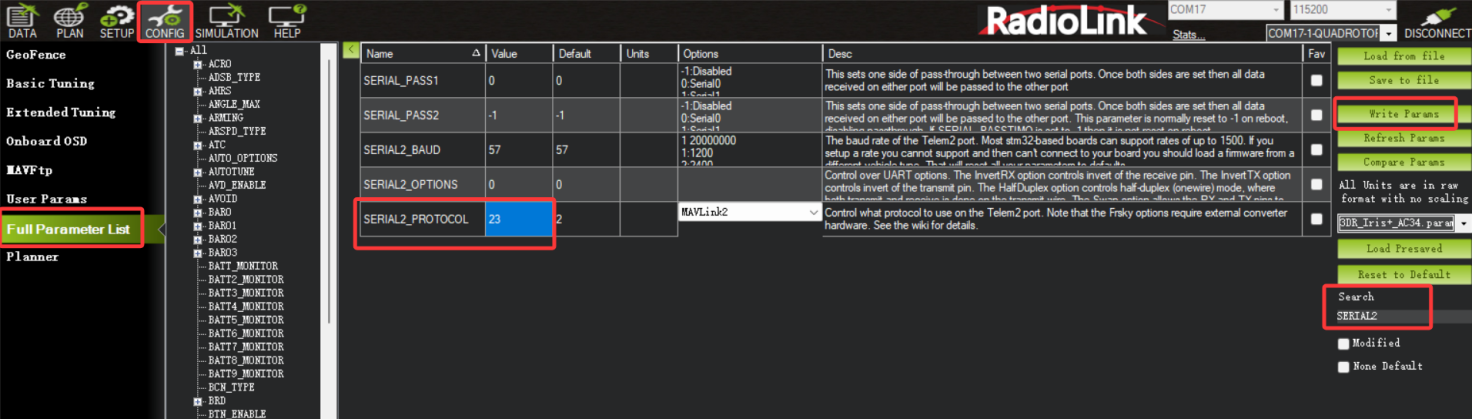
Connect F405 to Mission Planner. Enter CONFIG--Full Parameter List. Search SERIAL 2. Set SERIAL2_PROTOCOL to 23, and click Write Params. Then reboot F405.
Q: Can PIXHAWK/PIX6/Mini Pix/CrossFlight/CrossFlight-CE/F722/F405 be used to control gasoline power fixed wing?
Q: Can PIXHAWK/PIX6/Mini Pix/CrossFlight/CrossFlight-CE/F722/F405 be used to control gasoline power fixed wing?
A: Yes.